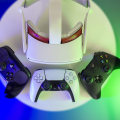
Virtual reality (VR) technology has revolutionized the way we experience digital environments, immersing us in worlds limited only by our imagination. However, as with any sophisticated technology, VR headsets are not immune to issues that can disrupt the immersive experience. One of the most common culprits behind VR malfunctions often lies in the physical connections and cables that link your headset to its power source and processing unit.
Checking cables and connections for VR headsets
is a crucial step that can save users from unnecessary frustration and downtime. Imagine gearing up for an exhilarating gaming session or a breathtaking virtual tour, only to be met with error messages or a blank screen.These disruptions can be easily traced back to overlooked hardware issues. Whether you are a seasoned VR enthusiast or a newcomer ready to dive into this exciting technology, ensuring that all connections are secure and functioning properly is essential for a seamless experience. This article, titled Essential Steps for Ensuring Proper VR Headset Connections, aims to guide you through the necessary steps to troubleshoot and resolve any connectivity issues you may encounter. By understanding how to systematically check your cables and connections, you can minimize the risk of interruptions and maximize your enjoyment of VR. Let’s dive in and ensure that your virtual adventures remain immersive and uninterrupted!When it comes to the world of virtual reality, ensuring that your headset is properly connected is crucial for a seamless experience.
There are various types of VR headsets available on the market today, each with its unique connection setups. From tethered systems that rely on cables to standalone devices that operate independently, understanding how to check and maintain these connections is key to activating your VR headset effectively. Most VR headsets require a combination of HDMI, USB, and power connections. For example, popular models like the Oculus Rift and HTC Vive utilize an HDMI cable to transmit video data from the computer to the headset. Meanwhile, they also require USB connections for tracking sensors and controllers.
On the other hand, standalone headsets like the Oculus Quest have built-in processors and do not need a computer connection, but still require proper charging through their power cables. To begin checking your connections, start with the HDMI cable. Ensure that it is securely plugged into both the VR headset and the graphics card on your computer. A loose connection can lead to flickering screens or even a complete lack of display. Next, inspect the USB connections; these should also be firmly connected.
Many VR headsets have multiple USB ports for different peripherals, so be sure you are using the correct port as specified in the headset's manual. The power cable is equally important; make sure it is plugged in securely and that any power source is functioning correctly. For headsets that require external power adapters, a faulty adapter can prevent your headset from turning on or operating properly. If you encounter issues such as a flickering screen or no display at all, double-check these connections first. Improper connections can lead to functionality issues that might not be immediately obvious. For instance, if the HDMI cable is not fully inserted, you may experience intermittent display issues, which can detract from your immersive experience.
Similarly, if the USB connection is loose, you may find that motion tracking is unstable or that controllers are not responding as expected. In addition to checking physical connections, it's essential to look at software settings and updates. Many VR headsets require specific drivers or software versions to function correctly. Ensuring that your system is up-to-date can resolve compatibility issues and enhance performance. Check for any available updates for both your VR headset software and your graphics drivers to ensure optimal functionality. As you consider which VR headset to purchase or troubleshoot, it's worth noting some popular options and their unique connection requirements.
The Valve Index is known for its high-quality visuals but requires a robust setup with multiple cables connecting to the PC. On the other hand, the PlayStation VR connects through a single processing unit via HDMI and USB, making it slightly easier to set up for console users. In conclusion, taking the time to thoroughly check your cables and connections can significantly enhance your virtual reality experience. Proper setup prevents common issues such as flickering screens or unresponsive controls and allows you to dive into exciting VR applications with confidence. By following these steps and understanding the unique requirements of different headsets, you can ensure that everything is in place for an enjoyable journey into virtual reality.
Exploring Virtual Reality Experiences
Once your VR headset is properly activated and all cables and connections are checked, you can dive into a wide array of immersive experiences that virtual reality has to offer.The world of VR applications is vast, catering to various interests and preferences. From thrilling gaming adventures that transport you to fantastical realms, to engaging educational programs that allow for interactive learning experiences, the possibilities are almost limitless. Users can explore virtual worlds, participate in social interactions with other players, or even attend live concerts from the comfort of their homes. Furthermore, VR is making significant strides in fields such as healthcare, where it is used for training medical professionals or aiding in patient rehabilitation. The potential for exploration and interaction within these environments enhances the overall user experience, making it essential to ensure that your headset is fully functional. Whether you are looking to immerse yourself in a gripping story or engage in a productive meeting with colleagues in a virtual office setting, having a properly set up VR system is crucial for unlocking the full potential of these applications.
Step-by-Step Connection Check
To ensure your VR headset is functioning optimally, it is crucial to perform a thorough check of all cables and connections.Follow these detailed steps to verify that everything is securely connected.
1.Inspect the Power Cable:
Start by examining the power cable that connects your VR headset to the power source. Ensure it is firmly plugged into both the headset and the outlet. Look for any signs of wear or damage on the cable.2.Check the USB Connections:
Next, locate the USB cables that connect your VR headset to your computer or console. Make sure each USB connector is securely plugged in.If applicable, try different USB ports to rule out any issues with specific ports.
3.Examine HDMI/DisplayPort Cables:
If your VR headset uses an HDMI or DisplayPort connection, check these cables as well. Ensure they are securely connected to both the headset and the output device (computer or console). Look for any visible damage or loose connections.4.Verify Adapter Connections:
If your setup includes any adapters (such as HDMI to DisplayPort), ensure that these are also securely connected and functional. Loose or faulty adapters can lead to connectivity issues.5.Check Sensor Placement and Connections:
For headsets that utilize external sensors, confirm that these sensors are properly connected and positioned.Ensure their cables are not damaged and are securely plugged into the appropriate ports.
6.Test the Setup:
Once you have checked all cables and connections, power on your VR headset and test it with a VR application. This will help you determine if all components are working harmoniously. By following these steps, you can ensure that all cables and connections are secure, which is essential for an optimal VR experience. Taking the time to perform this check can prevent common issues and enhance your enjoyment of virtual reality applications.Common Activation Issues and Solutions
When setting up a VR headset, users may encounter a variety of activation issues related to cables and connections. Identifying these common problems early on can save time and frustration, ensuring a smoother entry into the virtual reality experience. One frequent issue is a loose connection between the headset and the computer or console.If the headset does not power on or connect properly, first check that all cables are securely plugged in. Ensure that the or DisplayPort cable is firmly connected to both the headset and the GPU. If using adapters, verify that they are functioning correctly. Another common problem is the use of incompatible cables. Make sure that the cables being used meet the specifications required by your specific VR headset model.
For instance, using an older version of a USB cable may not provide enough power or data transfer speed, leading to connectivity issues. If users experience flickering or distorted visuals, this may indicate a faulty cable. Testing with another known working cable can help isolate the issue. Additionally, ensuring that there are no physical obstructions blocking the sensors and cameras on the headset is essential for optimal performance. Lastly, software conflicts can also hinder VR activation. Ensure that all necessary drivers and software are up to date.
Sometimes, simply restarting the system or reinstalling the VR software can resolve lingering connection issues. By being aware of these common activation issues and following practical troubleshooting tips, users can ensure their VR headset is set up correctly, paving the way for an exciting virtual reality adventure.
Recommended VR Headsets for Beginners
For those new to the world of virtual reality, choosing the right headset is crucial for an optimal experience. Here are some of the best VR headsets currently available, along with their connection specifics:Oculus Quest 2: This standalone headset is perfect for beginners. It connects via Wi-Fi for wireless play and also supports USB-C connections for charging and data transfer. With its ease of setup, users can quickly dive into VR applications without hassle.HTC Vive Cosmos
: A versatile option that offers both wired and wireless capabilities.It connects through a DisplayPort and USB for PCs, ensuring high-quality visuals and smooth performance. The headset is designed for comfort, making it suitable for extended gaming sessions.
PlayStation VR
: A great choice for console gamers, this headset connects directly to the PlayStation console using HDMI and USB cables. It provides an immersive experience with a range of exclusive titles, making it an exciting option for those already in the PlayStation ecosystem.Valve Index
: Known for its high-quality build and impressive tracking capabilities, the Valve Index connects via a combination of DisplayPort and USB cables to a compatible PC. While it may require a bit more setup, the performance is unmatched, making it suitable for those who want to dive deeper into VR.Pico Neo 3
: An emerging competitor in the VR market, this standalone headset offers both wireless and wired options.It connects through Wi-Fi and USB-C, providing flexibility and ease of use. With its competitive pricing, it’s an attractive option for beginners looking to explore virtual reality. By understanding the connection specifics of each headset, beginners can make informed decisions that will enhance their virtual reality experience. Properly setting up these devices ensures a seamless transition into the exciting world of VR.
Understanding Different VR Headset Connections
When it comes to virtual reality, one of the key components that can make or break your experience is the connection method of your VR headset. Different headsets utilize various types of connections, each offering unique features and capabilities.Understanding these can help you choose the right device and troubleshoot any potential issues.1.
Wired Connections
: Many VR headsets, such as the Oculus Rift S and HTC Vive, rely on wired connections to ensure a stable and high-quality experience. These headsets typically connect via USB and HDMI or DisplayPort, which allows for high-resolution visuals and low latency. The downside is that the cables can sometimes limit mobility, but they offer a more consistent performance.2.Wireless Connections
: Emerging technologies have allowed for wireless VR headsets like the Oculus Quest 2 to thrive. These devices use Wi-Fi to transmit data, eliminating the clutter of wires and offering greater freedom of movement.However, wireless connections can be susceptible to interference and may have increased latency compared to their wired counterparts.3.
Hybrid Connections
: Some headsets, such as the Pimax 8K, utilize a combination of wired and wireless capabilities. These devices may connect via HDMI or DisplayPort for visual output while using Bluetooth for controller connectivity. This flexibility can enhance user experience, but it also requires ensuring that both connection types are functioning properly.4.Proprietary Connections
: Certain manufacturers create their own specialized connections for optimal performance. For instance, the Valve Index features a unique connector that allows for advanced tracking capabilities and improved audio quality.While proprietary systems can offer superior performance, they may require specific setup steps and troubleshooting techniques. In summary, understanding the different types of VR headset connections is crucial for a seamless setup and optimal experience. By familiarizing yourself with these connection methods, you can better navigate any challenges you might face during the activation process. In conclusion, we have explored the essential steps involved in checking cables and connections for VR headsets. It is crucial to ensure that all components are properly connected to avoid common activation issues that can hinder your virtual reality experience. A well-set-up system not only enhances performance but also allows you to fully immerse yourself in the exciting world of VR applications. Remember, taking your time to meticulously verify each connection can save you from unnecessary frustration down the line.
As you prepare to dive into the virtual realm, make sure everything is in place for an optimal experience.