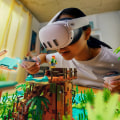
As the world of technology continues to evolve, Virtual Reality (VR) has emerged as one of the most captivating advancements, offering users immersive experiences that were once the stuff of science fiction. However, before you can dive into the stunning realms of VR, it is crucial to understand the minimum system requirements for VRminimum system requirements for VR that will ensure your hardware can support this cutting-edge technology. With an array of VR headsets available on the market, ranging from high-end devices to more accessible options, each comes with its own set of specifications that dictate what type of hardware you need. Failing to meet these requirements could lead to subpar experiences, stuttering visuals, or even system crashes, dampening your journey into virtual worlds. In this article, we will explore the essential components and specifications necessary for a smooth VR experience.
Whether you're a seasoned gamer looking to upgrade your setup or a newcomer eager to join the VR revolution, understanding these minimum system requirements is vital. Get ready to equip yourself with knowledge that will not only enhance your virtual reality experience but also ensure you have the right tools at your disposal. The rapid growth of virtual reality (VR) technology has transformed the way we interact with digital content, making it more immersive and engaging. From gaming to training simulations, the applications of VR are expanding, attracting a diverse audience. However, to fully enjoy these experiences, it is crucial to understand the minimum system requirements necessary for different VR headsets.
This knowledge not only ensures a smooth VR experience but also helps users avoid frustration during setup and activation. To begin with, let’s outline the minimum hardware specifications needed for various popular VR headsets. Most VR systems require a robust configuration to function optimally. For instance, the Oculus Rift S needs a minimum of an Intel i3-6100 / AMD Ryzen 3 1200 or greater processor, an NVIDIA GTX 960 / AMD Radeon RX 460 or greater graphics card, 8GB of RAM, and at least 400MB of free disk space. Similarly, the HTC Vive requires an Intel Core i5-4590 or AMD FX 8350 processor, NVIDIA GeForce GTX 970 or AMD Radeon R9 290 graphics card, along with 4GB of RAM and a USB port.
The Valve Index, being more advanced, suggests an Intel i5-4590 or AMD FX 8350 processor, NVIDIA GeForce GTX 970 or higher, at least 8GB of RAM, and sufficient space for the installation of its software. Next, let’s delve into the step-by-step instructions on how to set up these VR headsets effectively. First, ensure that your PC or console meets the minimum system requirements. Once verified, begin by connecting your VR headset to the appropriate ports on your device. This typically involves plugging in USB cables and HDMI/DisplayPort cables.
For example, when setting up the Oculus Rift S, connect the headset to the DisplayPort on your graphics card and USB ports for sensors and input devices. After connecting the hardware, install any required software or drivers. For most headsets, this includes downloading dedicated applications like Oculus Home for the Rift S or SteamVR for HTC Vive and Valve Index. Follow the on-screen instructions to complete the setup process. However, users may encounter common troubleshooting issues during activation.
Compatibility problems can arise if the connected hardware does not meet the minimum system requirements, leading to errors during installation. Ensure all drivers are up-to-date and that your operating system is compatible with the VR software you are using. If software errors occur after installation, try uninstalling and reinstalling the software, checking for updates or patches that may resolve the issues. Additionally, users should check their USB connections and ensure that all necessary peripherals are recognized by the system. In discussing VR headsets available in different price ranges, several options cater to varying budgets while still delivering quality experiences.
The Oculus Quest 2, priced affordably compared to others, provides a wireless experience with impressive features such as a high-resolution display and a robust library of games and apps. Mid-range options like the HTC Vive Cosmos offer enhanced tracking capabilities and modular design at a competitive price point. For those seeking high-end performance, the Valve Index delivers superior visuals and audio quality but comes with a higher price tag reflecting its advanced technology. Once VR is successfully activated and set up, users can immerse themselves in a variety of experiences ranging from thrilling gaming adventures to realistic simulations and educational tools. Popular VR games include titles like The Walking Dead: Saints & Sinners, which offers an engaging narrative-driven experience or Beat Saber, where users slice through music beats in a rhythm game format.
Additionally, VR simulations provide training scenarios for professionals in fields such as medicine or aviation. Educational tools utilize VR to create interactive learning environments that enhance comprehension of complex subjects. Understanding the minimum system requirements for VR, along with proper setup procedures and troubleshooting tips, is essential for anyone looking to dive into this exciting technology. By ensuring that your hardware meets these specifications and following best practices during installation, you can unlock a world of immersive experiences that virtual reality has to offer.
Minimum Hardware Specifications
When diving into the world of virtual reality, understanding the minimum hardware specifications required for your system is crucial. Each VR headset on the market has specific requirements that ensure optimal performance and a seamless experience.The essential components to consider include the CPU, GPU, RAM, and storage.
CPU
: The central processing unit is the brain of your computer, handling all the computations necessary for VR applications. Most modern VR systems recommend a multi-core processor, such as an Intel i5 or AMD Ryzen 5, to manage the demanding tasks associated with virtual environments effectively.GPU
: The graphics processing unit is perhaps the most critical component for VR. A powerful GPU is necessary to render high-quality graphics at a fast frame rate, which is vital for an immersive experience. Headsets like the Oculus Rift and HTC Vive typically require at least an NVIDIA GTX 1060 or AMD Radeon RX 480 to function smoothly.RAM
: Random Access Memory plays a significant role in multitasking and running applications efficiently.For most VR setups, a minimum of 8GB of RAM is recommended, although 16GB or more can provide better performance when running demanding VR applications.
Storage
: Adequate storage is also essential for installing VR software and games. A solid-state drive (SSD) is preferred due to its faster loading times compared to traditional hard drives. Generally, a minimum of 256GB of storage is advisable to accommodate the growing library of VR content. By meeting these minimum hardware specifications, users can ensure their systems are capable of delivering the immersive experiences that virtual reality has to offer.Best VR Headset Recommendations
As the virtual reality landscape continues to evolve, numerous VR headsets have emerged, each offering unique features tailored to different user preferences and requirements. In this section, we will highlight some of the top VR headsets available on the market today.Oculus Quest 2
: This all-in-one headset is known for its affordability and ease of use.With a resolution of 1832 x 1920 per eye, it delivers stunning visuals. Its wireless capability allows for a more immersive experience without the hassle of cables, making it a popular choice for beginners and casual gamers.
Valve Index
: For those seeking high-end performance, the Valve Index offers an impressive 1440 x 1600 resolution per eye and a refresh rate of up to 144 Hz. Its advanced tracking system and high-quality audio provide an unparalleled VR experience. However, it requires a powerful PC and external base stations for tracking.HTC Vive Pro 2
: Targeting professional users and enthusiasts, the Vive Pro 2 boasts a remarkable resolution of 2448 x 2448 per eye.Its ergonomic design ensures comfort during extended use, while its excellent tracking capabilities make it suitable for a wide range of applications, from gaming to virtual training.
PlayStation VR
: A great option for console gamers, the PlayStation VR offers compatibility with PlayStation 4 and PlayStation 5.With a resolution of 1920 x 1080 and a robust library of exclusive games, it provides a solid entry point into virtual reality for those already invested in the PlayStation ecosystem. Each of these VR headsets caters to different needs and preferences, making it crucial to choose the right one based on your specific requirements and budget. Understanding the features and specifications of each can help ensure that you have an optimal VR experience.Setting Up Your VR Headset
To enjoy a seamless virtual reality experience, it's crucial to properly set up your VR headset. Here are the detailed steps to connect and configure your VR headset with a PC or console.Step 1: Gather Your Equipment
- Before you start, ensure you have all necessary components: the VR headset, compatible controllers, a USB cable (if required), and the necessary cables to connect the headset to your PC or console.Step 2: Install Required Software
- Most VR headsets require specific software to function correctly. Visit the manufacturer’s website or the corresponding app store to download and install the required software.This may include drivers, applications, and updates that enhance functionality.
Step 3: Connect the Headset
- Follow the manufacturer’s instructions to connect your headset. For PC users, this typically involves plugging the USB and HDMI/DisplayPort cables into the appropriate ports on your computer. For console users, connect the headset using the designated ports on your gaming console.Step 4: Configure Settings
- Once connected, launch the VR software. You may need to create an account or log in.Follow any on-screen prompts to configure settings such as display resolution, audio preferences, and tracking options. It’s essential to adjust these settings for optimal performance.
Step 5: Set Up Play Area
- A safe play area is critical for a smooth VR experience. Clear any obstacles and ensure ample space for movement. Many setups will guide you through a boundary setup process where you define your play space.Step 6: Test Your Setup
- Before diving into games or applications, test your setup.Use built-in calibration tools to ensure that tracking and sensors are functioning correctly. Make any necessary adjustments based on this test.
Step 7: Enjoy Your VR Experience
- With everything set up and calibrated, you are ready to explore virtual worlds! Remember to take breaks during long sessions to avoid discomfort. By following these steps, you will ensure that your VR headset is correctly set up for an immersive experience, minimizing common issues and maximizing enjoyment.Troubleshooting Common Issues
Despite the excitement surrounding virtual reality (VR), users may encounter a variety of activation problems. Understanding these common issues and their solutions can significantly enhance your VR experience.1.Insufficient System Requirements:
One of the most frequent issues is having hardware that does not meet the minimum system requirements for VR. To resolve this, verify your PC's specifications, including the CPU, GPU, RAM, and available USB ports.If your system falls short, consider upgrading your hardware or using a compatible device.
2.Software Compatibility:
Sometimes, the VR software may not be compatible with your operating system or other applications. Ensure that you have the latest version of your VR software installed. Additionally, check for updates on your operating system to avoid compatibility issues.3.Tracking Problems:
Users often face tracking issues where the VR headset fails to accurately track movements. This can be caused by improper sensor placement or obstructions in the play area.Ensure that all sensors are correctly positioned and free from obstructions. Recalibrating the tracking system can also help resolve these issues.
4.Display Issues:
If the VR display is not functioning correctly or shows a black screen, check the connections between your headset and computer. Make sure all cables are securely plugged in. Restarting both the headset and the computer can also rectify minor display problems.5.Audio Problems:
Audio issues can disrupt immersion in VR experiences.Ensure that your audio settings are configured correctly in both the VR software and your computer's sound settings. If using headphones, verify that they are properly connected and functioning.
6.Connectivity Issues:
Some users may experience connectivity problems with their VR headsets. Check if your headset is properly connected via USB or HDMI cables. For wireless devices, ensure that Bluetooth is enabled and that the device is within range. By addressing these common activation problems systematically, users can enjoy a smoother and more immersive virtual reality experience.Exploring VR Experiences
Once you have activated your VR system, a vast array of experiences awaits you, catering to various interests and preferences.The versatility of virtual reality is evident in its diverse applications, ranging from gaming to education, training simulations, social interactions, and immersive storytelling.
Gaming
stands out as one of the most popular applications of VR technology. Players can immerse themselves in richly designed worlds, engaging in thrilling adventures or competitive environments that make them feel as though they are truly part of the action. Titles such as Beat Saber and Half-Life: Alyx exemplify the engaging nature of VR gaming, providing unique mechanics that can only be experienced in a virtual space. Beyond gaming, education has found a significant application for VR. Students can explore historical sites, conduct science experiments in a safe environment, or even practice surgical procedures in medical training programs.This immersive approach enhances learning by providing interactive experiences that traditional methods cannot match.
Training simulations
have also benefited from VR technology, allowing professionals to hone their skills in a controlled setting. Industries such as aviation, military, and healthcare utilize VR to create realistic scenarios where individuals can practice critical skills without the risks associated with real-life training. Additionally, social experiences in VR allow users to connect with others in a virtual environment. Platforms like VRChat and Rec Room enable users to meet, interact, and participate in activities together, regardless of their physical location. This social aspect has become increasingly important as people seek ways to connect with friends and family remotely. Finally, immersive storytelling is another exciting aspect of VR experiences.Users can step into narratives and explore stories from a first-person perspective. This format allows for deeper emotional engagement and a more impactful understanding of the narrative's context. In summary, activating your VR system opens the door to a multitude of experiences across various domains. Understanding the system requirements is crucial for unlocking these potentials and ensuring that your journey into virtual reality is both enjoyable and seamless. In conclusion, understanding the minimum system requirements for virtual reality is crucial for anyone looking to dive into this immersive technology. As we have discussed, having the right hardware not only enhances your experience but also prevents common issues that can arise from inadequate specifications.
We encourage you to assess your current system and consider investing in compatible hardware to ensure optimal performance. Additionally, exploring our best VR headset recommendations and the wide array of applications available can significantly enrich your virtual reality experience. Embrace the potential of VR and take the first step towards unlocking a new world of possibilities!.