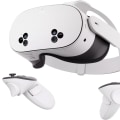
As virtual reality (VR) technology continues to evolve, the HTC Vive stands out as a premier choice for enthusiasts eager to dive into immersive experiences. Whether you’re exploring fantastical worlds, engaging in thrilling games, or experiencing interactive simulations, the HTC Vive offers a gateway to adventures that go beyond traditional gaming. However, before you can embark on your journey through virtual realms, there’s an essential step that must be completed: setting up your HTC Vive on your computer.This process can seem daunting at first glance, especially for those who are new to VR technology or are not particularly tech-savvy. But fear not! Our comprehensive guide is designed to walk you through each step of the setup process, ensuring you have everything you need to enjoy the stunning visuals and captivating experiences that the HTC Vive has to offer.
From system requirements to hardware connections and software installations, we’ll cover all aspects necessary to get your VR system up and running smoothly. In this article, we will break down the setup process into manageable steps, providing clear instructions and helpful tips along the way. By the end of this guide, you will not only have your HTC Vive ready for action but also be equipped with knowledge that enhances your overall VR experience. So let’s get started on this exciting journey into the world of virtual reality!Setting up your HTC Vive can be an exciting journey into the world of virtual reality, offering immersive experiences that transport you to different worlds. To ensure you get the most out of your VR experience, it’s essential to follow a careful step-by-step process from unboxing to installation.
First, let’s go over the necessary hardware requirements. You will need a compatible PC with at least an NVIDIA GeForce GTX 970 or AMD Radeon R9 290 graphics card, an Intel i5-4590 processor or better, 4 GB or more of RAM, and Windows 7 SP1 or newer. Ensure that your PC is equipped with USB 2.0 or higher ports for connecting the headset and accessories. Once you have confirmed that your system meets these requirements, it’s time to unbox your HTC Vive. Inside the box, you will find the headset, two base stations, two controllers, a link box, and various cables.
Carefully take out each component and lay them out in a clean space to make the setup easier. The first step is to set up the base stations; these are crucial for tracking your movements in VR. Position the base stations diagonally across from each other in your play area, about 6.5 feet high, and angled downwards at about 30 degrees. Ensure they have a clear line of sight to each other and avoid any obstructions. Next, connect each base station to a power outlet using the supplied power adapters.
Once they are powered on, you will see a green LED light indicating they are functioning correctly. Now it's time to connect the HTC Vive headset. Take the link box and connect it to your PC via the HDMI or DisplayPort cable and USB cable. Then connect the power cable to the link box and plug it into an electrical outlet. With the link box connected, you can now plug in the headset itself.
Connect the headset cable to the link box—this includes connecting the HDMI/DisplayPort cable and USB cable from the headset to their respective ports on the link box. Now that everything is physically connected, it’s time to install the necessary software. Download Steam if you haven’t already, as it is essential for running VR applications. Once installed, launch Steam and navigate to the SteamVR section in your library. Follow the prompts to install SteamVR.
After installation, open SteamVR. You should see a VR dashboard appear on your screen. The next step is to configure SteamVR and calibrate your play area. Make sure your headset and controllers are turned on; you should see their status in the SteamVR dashboard. Click on the ‘Room Setup’ option in SteamVR, where you’ll be prompted to choose between a standing-only or room-scale setup.
If you opt for room-scale, you will be asked to define your play area by following on-screen instructions that guide you through setting boundaries and establishing where you can move safely within VR. Once you have completed the setup process, take a moment to test out the system by trying on your HTC Vive. If everything is working correctly, you should be able to see a virtual environment through your headset. However, if you encounter any activation issues such as connection problems or software errors, here are some troubleshooting steps: For connection issues, check all cable connections and ensure that both the headset and base stations are powered on. If SteamVR does not recognize your headset, try restarting both your computer and SteamVR.
In cases of software errors, ensuring that your graphics drivers are up-to-date can often resolve many common problems. After successfully activating your HTC Vive, a world of applications awaits you. You can dive into a wide range of VR experiences such as thrilling games like The Walking Dead: Saints & Sinners, educational programs that provide immersive learning experiences, or even virtual tours of famous landmarks around the world. The possibilities are endless!If you run into any difficulties during setup or have questions about using your new VR system, feel free to share your experiences or ask for help in forums or communities dedicated to VR enthusiasts. Your journey into virtual reality is just beginning!
Unboxing and Preparing Your HTC Vive
When you first receive your HTC Vive, the excitement of unboxing it is palpable.Carefully opening the box is essential to ensure all components are intact and undamaged. Inside the box, you will find several key items that are necessary for setting up your VR system. The contents typically include the Vive headset, two base stations, two controllers, and various cables such as HDMI, USB, and power cords. Additionally, there may be a cleaning cloth and a quick start guide to assist you in the setup process. Before diving into the installation, it is important to handle each component with care. The lenses of the headset are particularly delicate, so avoid touching them directly and consider using the cleaning cloth provided.
Ensure that you have a clear workspace to lay out all items to avoid misplacing any components. After unboxing, take a moment to read through the quick start guide. This will give you an overview of the setup process and familiarize you with the components. Make sure your computer meets the necessary specifications for the HTC Vive, as this will greatly impact your overall experience. Once everything is prepared, you’ll be ready to move on to the next steps of the installation process, ensuring that your HTC Vive is set up correctly for an immersive virtual reality experience.
Calibrating Your Play Area
To fully enjoy the immersive experience that HTC Vive offers, it is essential to set up your play area properly. A well-calibrated play area ensures both safety and an optimal VR experience.Here are the steps to establish a safe and effective play space. Firstly, you need to ensure that your room meets the size requirements for the HTC Vive. Ideally, you should have a minimum play area of 6.5 feet by 5 feet, although more space is recommended for a more comfortable experience. Clear out any furniture or obstacles from this area to avoid accidents while you are moving around in VR. Once you have your space cleared, it’s time to set up the boundary settings. Start by launching the HTC Vive setup application on your computer.
Follow the prompts to define your play area. You will need to physically walk around the perimeter of your designated space using the controllers, which will allow the system to recognize the boundaries. This step is crucial as it helps prevent you from accidentally stepping outside of your safe zone during gameplay. After defining your boundary, make sure to adjust the height settings according to your standing or seated position. This calibration ensures that virtual objects interact correctly with your physical environment, enhancing your overall VR experience. Finally, don’t forget to periodically check your play area and boundary settings, especially if you make changes to your room layout or if multiple users are sharing the HTC Vive.
Keeping a clear and properly calibrated space is vital for both safety and immersion in virtual reality.
Troubleshooting Common Issues
Setting up your HTC Vive can sometimes present challenges, but many of these issues have straightforward solutions. Below are some frequent problems users may encounter during setup or activation, along with clear solutions for each issue.1.Headset Not Detected:
If your headset is not being recognized by your computer, first ensure that all cables are properly connected. Check the USB and HDMI connections to make sure they are secure. Restart your computer and the SteamVR application; this often resolves detection issues.2.Poor Tracking Performance:
If you experience jittery or unstable tracking, verify that the base stations are positioned correctly.They should be mounted at least 6.5 feet off the ground, angled downward, and have a clear line of sight to each other and the headset. Ensure there are no obstructions in their view.
3.Display Issues:
For problems with the display, such as a black screen or flickering, check the HDMI connection from the link box to the graphics card. If using an adapter, ensure it’s compatible with both the HTC Vive and your graphics card. Try changing the HDMI port on your GPU or testing with another HDMI cable.4.SteamVR Not Launching:
If SteamVR fails to launch, make sure your Steam client is up-to-date.Additionally, check if your GPU drivers are current by visiting the manufacturer's website for updates. Sometimes reinstalling SteamVR can resolve persistent launch issues.
5.Audio Problems:
If you experience audio issues, ensure that your audio output settings are correctly configured in Windows. Go to 'Sound Settings' and select the HTC Vive as the default device. You can also check if the audio is muted on the headset itself. By following these troubleshooting steps, you should be able to resolve common issues that arise during the setup of your HTC Vive.Remember that patience is key; sometimes simply restarting devices can lead to a successful connection.
Installing Software and Configuring SteamVR
Before diving into the HTC Vive experience, it is essential to install the necessary software and configure SteamVR. This process lays the foundation for an enjoyable virtual reality journey. First, begin by downloading the Steam client if you haven’t done so already. Visit the official Steam website, create an account or log in, and download the client compatible with your operating system. Once downloaded, follow the prompts to install Steam on your computer. Next, connect your HTC Vive headset to your computer.Make sure all cables are securely connected to both the headset and the base stations. Once connected, power on your headset and launch the Steam client. It should automatically detect the HTC Vive.Now, it’s time to install SteamVR. In the Steam library, search for SteamVR, then click on the 'Install' button.
This will download and install the required files for virtual reality functionality. Once installation is complete, you will need to configure your SteamVR settings. Launch SteamVR, and follow the setup wizard. The wizard will guide you through configuring your play area. Make sure you have enough space for movement; it’s important for an optimal experience. You will also need to set up the tracking for your base stations.
Ensure they are mounted at opposite corners of your play area, ideally at least 6.5 feet high and angled downwards towards the center of your space. Finally, after you’ve completed the setup, check for any updates for both SteamVR and your HTC Vive. Keeping software up-to-date is crucial for performance and compatibility. This completes the installation and configuration process. With everything set up, you are now ready to explore the immersive worlds that await in virtual reality!
Connecting Your HTC Vive to Your Computer
To fully enjoy the immersive experience that the HTC Vive offers, it's crucial to connect the headset and accessories properly to your computer. Start by ensuring that your PC meets the minimum system requirements for the HTC Vive, which include a compatible graphics card and sufficient USB ports. Begin the connection process by locating the Vive Link Box.This box serves as the central hub for all connections. Connect the power cable to the Link Box and plug it into a power outlet. Next, take the HDMI cable and connect one end to your computer’s HDMI output and the other end to the HDMI port on the Link Box. After establishing the video connection, proceed with the USB connection. Use a USB 3.0 cable to connect the Link Box to one of your computer's USB ports.
This connection is essential as it allows data transfer between your headset and computer. Next, connect the Vive headset to the Link Box. You'll find two cables—one for USB and one for HDMI—coming from the headset. Plug these into their respective ports on the Link Box. Ensure that all connections are secure to avoid any performance issues. Finally, if you’re using external sensors for room-scale tracking, position them at opposite corners of your play area and connect them to power.
Make sure they have a clear line of sight to your headset for optimal tracking accuracy. Once all connections are made, power on your computer and check that your HTC Vive is recognized by your system. You may need to install or update drivers from SteamVR for seamless operation. By following these steps, you ensure that your HTC Vive is correctly set up and ready for an incredible virtual reality experience.
Exploring VR Experiences After Activation
After successfully setting up your HTC Vive, a whole new world of virtual reality experiences awaits you. The immersive capabilities of the HTC Vive allow users to dive into a diverse range of applications and games that cater to various interests and preferences. Whether you're a fan of action-packed adventures, serene explorations, or creative simulations, the HTC Vive has something for everyone. One of the most popular genres among HTC Vive users is action and adventure.Titles like Half-Life: Alyx and The Walking Dead: Saints & Sinners offer thrilling narratives and engaging gameplay that leverage the full potential of VR. Players can experience heart-pounding moments as they navigate through richly detailed environments, face off against enemies, and solve intricate puzzles. For those who prefer a more relaxing experience, exploration games such as The Forest or No Man's Sky provide vast open worlds to discover at your own pace. These titles allow you to immerse yourself in stunning landscapes, engage with nature, and even build and craft in virtual spaces. If creativity is your passion, you'll find a wealth of creative applications that allow you to express yourself in new ways. Programs like Tilt Brush enable users to paint in 3D space, while SculptrVR lets you sculpt intricate models right in front of you.
These applications not only showcase the capabilities of the HTC Vive but also encourage artistic exploration. Additionally, social VR experiences have gained popularity, offering users the chance to connect with others in virtual environments. Platforms like VRChat and Rec Room provide spaces for social interaction, gaming, and collaboration, making them perfect for meeting friends or making new ones. In conclusion, after activating your HTC Vive, you will find a plethora of applications and games that can transform your understanding of virtual reality. From exhilarating adventures to creative outlets and social experiences, the possibilities are endless. With the right setup and knowledge of available titles, your journey into immersive VR will be nothing short of extraordinary. In conclusion, setting up your HTC Vive is a crucial step toward unlocking the full potential of virtual reality.
We have covered essential processes including unboxing and preparing your headset, connecting it to your computer, installing the necessary software, calibrating your play area, and troubleshooting common issues. Each of these steps is vital for ensuring that you achieve optimal performance and an immersive experience. By carefully following the setup steps outlined in this article, you can confidently dive into the exciting world of VR. We encourage you to explore various VR experiences and discover new adventures. Should you have any additional tips or questions, please feel free to share them with us; your insights can help enhance the community's VR experience.