In the ever-evolving landscape of virtual reality (VR), the ability to seamlessly activate and run VR applications on mobile devices is crucial for both developers and users. With the exponential growth of VR technology, particularly on platforms like Android and iOS, understanding the best practices for activating VR apps has become more important than ever. In this article, we delve into the essential steps and strategies that can enhance the activation experience for VR apps on these platforms. As mobile devices become more powerful and capable of delivering immersive experiences, it’s imperative for developers to adopt effective activation techniques that cater to the unique characteristics of Android and iOS. This not only improves user satisfaction but also ensures that your app stands out in a crowded marketplace.
Whether you are a seasoned developer or just starting in the VR space, knowing how to properly activate your app can be the difference between success and obscurity. We will explore key considerations such as optimizing your app's performance, ensuring compatibility with various devices, and implementing user-friendly interfaces that guide users through the activation process. By following these top practices, you can create a more engaging and accessible VR experience that resonates with your audience. Join us as we uncover these vital steps in activating VR applications on mobile platforms. As the world of technology evolves, the significance of following best practices for activating VR apps cannot be overstated. Proper activation is crucial for ensuring a seamless user experience, especially in the realm of virtual reality (VR) where immersion is key.
Poorly activated apps can lead to frustrating experiences, such as lag, disorientation, or even failure to launch, which can deter users from fully engaging with VR content. By adhering to established guidelines, developers and users alike can avoid common pitfalls associated with activating VR applications. When it comes to setting up VR on mobile devices, the processes differ between Android and iOS. For Android users, the first step involves ensuring that their device is compatible with VR. Most modern Android smartphones support VR applications, but users should check the specifications for features like gyroscope and accelerometer sensors.
Once confirmed, users should download the necessary VR app from the Google Play Store. After installation, it’s essential to connect a compatible VR headset, such as the Oculus Quest or Samsung Gear VR. Following this, users need to calibrate their device, typically involving adjusting settings within the app to ensure optimal performance. On the other hand, activating VR on iOS devices requires a slightly different approach. iPhones and iPads are generally compatible with VR apps but often require specific headsets, such as the Merge Cube or Google Cardboard.
Users must download the designated app from the App Store and follow similar calibration steps as found in Android setups. Additionally, iOS users might face limitations regarding certain advanced features available on Android devices due to hardware differences. Both platforms have specific hardware and software requirements that must be met for effective activation. For Android, a device running at least Android 5.0 (Lollipop) is recommended, along with a processor capable of handling VR tasks, such as Snapdragon 835 or better. iOS devices should ideally be running iOS 11 or later.
The compatibility of headsets also plays a vital role; for instance, some headsets may only work with certain models of smartphones. Common activation issues can arise during the setup process, including app compatibility, headset connectivity, and software updates. To troubleshoot app compatibility problems, users should ensure that their device meets all requirements specified by the app developer. For headset connectivity issues, checking connections and ensuring that Bluetooth is enabled can resolve many problems. If an app fails to run due to outdated software, users should regularly check for updates on their devices and within the respective app stores to maintain optimal performance. When it comes to selecting the best VR headsets for both Android and iOS platforms, several options stand out based on features, price points, and user experiences. . To troubleshoot app compatibility problems, users should ensure that their device meets all requirements specified by the app developer. For headset connectivity issues, checking connections and ensuring that Bluetooth is enabled can resolve many problems. If an app fails to run due to outdated software, users should regularly check for updates on their devices and within the respective app stores to maintain optimal performance. When it comes to selecting the best VR headsets for both Android and iOS platforms, several options stand out based on features, price points, and user experiences.
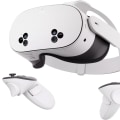
For Android users, headsets like the Oculus Quest 2 provide a versatile standalone experience with advanced features such as high-resolution displays and hand tracking capabilities. Priced around $299, it offers a robust library of VR applications. On the other hand, budget-conscious users may consider the Samsung Gear VR, which is often available at lower price points but may lack some advanced functionalities.iOS users looking for immersive experiences might opt for the Merge Cube, which combines augmented reality (AR) with VR for an engaging educational experience. Priced affordably at around $14.99, it is ideal for interactive learning scenarios.
Alternatively, Google Cardboard offers a low-cost entry point into VR at approximately $10 but lacks many of the advanced features found in higher-end headsets. Once activated successfully, users can explore various types of VR experiences ranging from gaming to educational content and immersive simulations. Gaming experiences can transport players into fantastical worlds where they can interact in real-time environments. Educational applications leverage VR technology to provide students with virtual field trips or interactive lessons that enhance learning retention. Immersive simulations can be utilized in professional training scenarios—such as medical simulations for aspiring doctors—allowing users to practice skills in a risk-free environment. In conclusion, understanding and implementing best practices for activating VR apps on Android and iOS ensures an enriched user experience that maximizes engagement and minimizes frustration.
With careful attention to setup processes, hardware requirements, troubleshooting common issues, and selecting appropriate headsets, users can truly immerse themselves in the captivating world of virtual reality.
Exploring VR Experiences Post-Activation
After successfully activating VR apps on Android and iOS, users can delve into a variety of VR applications that cater to diverse interests. These applications have gained traction due to their immersive experiences, which can transform the way we interact with digital content. One of the most popular categories is gaming. VR gaming offers players an unparalleled level of engagement, allowing them to step into fantastical worlds and interact with environments in ways that traditional gaming cannot replicate. Titles range from action-packed adventures to puzzle-solving challenges, ensuring that there is something for every type of gamer. Another significant area is education.VR educational apps have emerged as powerful tools for learning, providing students with immersive experiences that enhance understanding and retention of complex subjects. From virtual field trips to interactive science labs, these applications make learning more engaging and effective. Furthermore, social interaction in VR has opened new avenues for communication. Applications allow users to connect with friends or meet new people in virtual spaces, fostering a sense of community. Users can attend virtual events, engage in shared experiences, or simply hang out in immersive environments, bridging the gap between physical distance and social interaction. In summary, once activated, VR apps on mobile platforms offer a rich tapestry of experiences across various domains such as gaming, education, and social interaction, making them a valuable addition to any mobile device.
Setting Up VR on Android
To successfully activate VR apps on Android devices, it is essential to follow a systematic approach.This will ensure a smooth and immersive experience for users. Below are the detailed steps to set up VR on Android:Step 1: Choose the Right VR HeadsetBefore diving into the activation process, select a compatible VR headset for your Android device. Popular options include the Google Cardboard, Samsung Gear VR, and Oculus Quest. Ensure your headset is designed for your specific device model.
Step 2: Install a VR App
Visit the Google Play Store and search for VR applications that suit your interests.Some popular choices include Google Cardboard, YouTube VR, and Netflix VR. Download and install your chosen app by tapping the 'Install' button.
Step 3: Connect Your Headset
Once the app is installed, it’s time to connect your VR headset. For headsets like Google Cardboard, simply insert your phone into the designated slot. For more advanced headsets, follow the manufacturer's instructions for connection.Ensure that the device's screen is facing inward.
Step 4: Launch the VR App
Open the installed VR app by tapping its icon on your home screen. Allow any necessary permissions, such as access to your camera or storage, to enhance your experience.Step 5: Adjust Settings
Before diving into the VR content, take a moment to adjust the settings within the app. This may include calibrating the view for optimal comfort and ensuring sound settings are configured correctly.Step 6: Start Your VR Experience
With everything set up, place your smartphone in the VR headset and secure it. Put on the headset and follow any on-screen prompts to start enjoying your virtual reality experience. By following these steps, users can effectively activate and enjoy VR apps on their Android devices, paving the way for an engaging mobile experience.Activating VR on iOS
Activating VR on iOS devices requires a careful understanding of the specific requirements and settings adjustments necessary for a successful experience.To begin with, ensure that your device is compatible with VR applications. Most recent iPhones and iPads support VR, but it’s essential to check the app's specifications for compatibility. First, download the VR app from the App Store. Once installed, launch the application, and you may be prompted to enable certain permissions such as camera access or motion tracking. Make sure to allow these permissions as they are crucial for a seamless VR experience. Next, adjust settings within the app.
Many VR applications provide a settings menu where users can customize their experience, including adjusting the field of view or selecting different VR modes. Take some time to explore these settings to optimize your VR experience. Additionally, ensure that your device is updated to the latest iOS version. Updates often include enhancements that improve performance and compatibility with VR apps. You can check for updates by navigating to Settings > General > Software Update.Lastly, consider utilizing a VR headset compatible with iOS devices.
Popular options include Google Cardboard or more advanced headsets like the Oculus Quest 2.Follow the manufacturer’s instructions for setup and pairing with your iOS device for the best results. In summary, activating VR on iOS involves downloading the appropriate app, allowing necessary permissions, adjusting in-app settings, keeping your device updated, and using a compatible headset. By following these steps, users can ensure a smooth activation process and enjoy immersive virtual reality experiences on their iOS devices.
Best VR Headsets for Mobile Platforms
When it comes to experiencing virtual reality on mobile devices, the choice of VR headset plays a crucial role in delivering an immersive experience. Below are some of the top-rated VR headsets for both Android and iOS users, along with a comparison of their features and performance.1.Oculus Quest 2
: Although primarily a standalone device, the Oculus Quest 2 can connect to Android devices via Oculus Link or Air Link for enhanced graphics and performance. It boasts high-resolution displays, a powerful processor, and an extensive library of VR content.2.Samsung Gear VR
: Designed specifically for Samsung smartphones, the Gear VR offers a comfortable fit and excellent motion tracking.It is a great choice for Android users seeking an affordable entry into the world of VR. However, its compatibility is limited to certain Samsung models.
3.Google Daydream View
: This headset is compatible with a range of Android devices that support Daydream. It features a lightweight design and a comfortable fabric exterior, making it ideal for extended use. While Google has shifted focus away from Daydream, existing users can still enjoy a decent library of VR experiences.4.Merge VR
: This versatile headset is compatible with both Android and iOS devices.It is made from soft foam, making it durable and comfortable for various head sizes. The Merge VR allows for easy access to apps and experiences available on both platforms.
5.Zeiss VR One
: Compatible with both Android and iOS smartphones, the Zeiss VR One is known for its optical quality and adjustable lens settings. Its modular design allows users to switch out phone adapters for different device models easily. In conclusion, choosing the right VR headset is essential for maximizing your mobile VR experience. Consider compatibility with your device, comfort during extended use, and the quality of content available when making your selection.Troubleshooting Common Activation Issues
Activating VR apps on mobile devices can sometimes present challenges for users.Here, we will outline some of the most frequent problems encountered during activation, along with clear solutions to help you troubleshoot effectively.
1.App Crashes During Activation:
One of the common issues is the app crashing when trying to initiate VR mode. This can be caused by insufficient device resources or software bugs.Solution:
Ensure that your device meets the minimum requirements for the app. Close any background applications to free up memory and try restarting your device before attempting activation again.2.Incompatible Device:
Not all devices support VR applications.If you receive an error indicating incompatibility, it may be due to hardware limitations.
Solution:
Check the app’s compatibility list and verify that your device is included. Consider updating your device if it falls short of specifications.3.Poor Tracking or Calibration Issues:
Once activated, users may experience poor tracking or calibration problems, affecting the overall VR experience.Solution:
Make sure you have sufficient light in your environment and that the tracking sensors are unobstructed.Recalibrate your device according to the app’s instructions, and ensure that your movements are smooth and gradual during the setup process.
4.Screen Flickering or Lag:
Users might notice screen flickering or lag during activation, which can lead to discomfort in VR environments.Solution:
Check for any pending software updates for both the app and your device. Reducing the graphics settings within the app may also help alleviate performance issues.5.Connectivity Problems:
Some VR applications require a stable internet connection for initial activation or content download.Solution:
Ensure you are connected to a reliable Wi-Fi network and that your internet connection is stable.If using mobile data, confirm that you have sufficient bandwidth available. By identifying these common activation issues and applying the provided solutions, users can enhance their experience with VR applications on both Android and iOS platforms. In conclusion, we have explored the essential steps for activating VR apps on both Android and iOS platforms. We discussed the intricacies of setting up VR on Android devices, the unique activation process for iOS, and troubleshooting common issues that may arise during activation. Additionally, we highlighted the best VR headsets suited for mobile platforms and encouraged readers to delve into various VR experiences once their apps are successfully activated. Following these best practices is crucial for ensuring a seamless and enjoyable VR experience. Proper activation not only enhances user satisfaction but also maximizes the potential of VR technology in mobile applications.
We hope this guide empowers you to fully explore the exciting world of virtual reality.