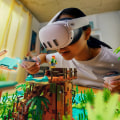
In the exciting world of virtual reality (VR), immersing yourself in breathtaking landscapes and thrilling gaming experiences is just a headset away. However, like any technology, PC-based VR systems can encounter their fair share of challenges. Whether you're a seasoned gamer or a newcomer to the realm of VR, knowing how to effectively troubleshoot common PC-based VR issues can make the difference between an exhilarating experience and an exasperating one. Imagine gearing up for a highly anticipated gaming session only to find your VR headset isn't functioning as expected.
Perhaps you're dealing with tracking problems, performance lags, or software glitches that disrupt your adventure. These issues can be frustrating, but fear not! This guide aims to equip you with the knowledge and tools necessary to address these common problems. In this article, we will delve into the most prevalent PC-based VR issues encountered by users and provide practical solutions to help you get back into your virtual world seamlessly. From ensuring proper setup to optimizing performance, we’ll cover everything you need to know to enhance your VR experience.
So, strap on your headset and get ready to troubleshoot like a pro!When it comes to Troubleshooting common PC-based VR issues, it's essential to understand the myriad of challenges users may face during the setup and activation of their VR systems. A smooth VR experience is crucial for immersion, yet many users encounter frustrating barriers that can hinder their enjoyment. This article aims to provide a comprehensive overview of common problems, along with effective troubleshooting steps, headset recommendations, and insights into the exciting VR experiences waiting once everything is operational. One prevalent issue users report is headset connectivity problems. This can manifest in various ways, such as the headset not being detected by the PC or intermittent disconnections during use.
To troubleshoot this issue, start by checking all USB connections to ensure they are secure. Sometimes, simply unplugging and re-plugging the cables can resolve the problem. Next, verify that your USB ports are functioning correctly by testing them with other devices. It's also crucial to update your device drivers, particularly for USB controllers and graphics cards.
Head to the manufacturer's website to download the latest drivers. Finally, ensure that the headset is properly set up within the VR software, which may involve selecting the correct headset model or adjusting settings. Another common concern is software installation errors. Users often find that their VR software fails to install correctly or crashes during the setup process. If you encounter this issue, first check that your operating system is up to date, as compatibility issues can arise from outdated software.
Clear any previous installations of the VR software to eliminate potential conflicts, and disable any antivirus programs temporarily during installation, as they can sometimes interfere with the process. If errors persist, consult the software's official support documentation for specific troubleshooting steps or seek help from online forums where experienced users might share solutions.
Compatibility concerns
between VR headsets and PCs can also pose significant challenges. Each VR headset comes with its own set of system requirements, which can vary greatly. Before purchasing a headset, always check these requirements against your PC's specifications.If you have already invested in a headset but are facing compatibility issues, ensure that your graphics card meets or exceeds the necessary performance benchmarks. Upgrading hardware components like RAM or the GPU might be necessary for optimal performance. Some users have successfully resolved compatibility issues by adjusting in-game settings to lower graphics quality or resolution, thus reducing the strain on their hardware. Real-life scenarios illustrate how persistence pays off when tackling these common issues. For instance, one user struggled with their VR headset not being detected after a recent Windows update.
After verifying connections and updating drivers without success, they discovered a setting within their BIOS that needed adjustment—enabling USB legacy support resolved their detection issue. Another user faced repeated installation failures with their VR software; after consulting online community forums, they learned about a specific registry edit that fixed the problem. It’s important to acknowledge that not every solution will work for everyone due to variations in hardware configurations and user environments. Troubleshooting can sometimes feel like a trial-and-error process requiring patience and perseverance. Encourage users to keep exploring different solutions until they find what works for them.
By following these troubleshooting tips and maintaining an understanding of their hardware capabilities, users can overcome common PC-based VR issues and enjoy a seamless virtual reality experience.
Common Activation Problems
When setting up your VR system, encountering activation problems can be a significant hurdle. One of the most common issues users face is when the headset is not recognized by the PC. This can happen due to various reasons, such as faulty connections, outdated drivers, or incompatible hardware. Ensuring that all cables are securely connected and that your headset is compatible with your system's specifications is crucial. Another frequent issue involves software installation failures.Users may experience problems when trying to install the necessary software for their VR headset. This could be due to insufficient system resources, conflicts with other software, or corrupted installation files. To mitigate these problems, make sure your operating system is updated and that you have adequate storage space available. Lastly, account-related problems can also hinder the activation process. Many VR platforms require users to create an account or log in before accessing their services.
Issues such as forgotten passwords, account verification failures, or regional restrictions can prevent smooth activation. It’s important to check your account status and ensure that all necessary credentials are correctly entered.
Step-by-Step Troubleshooting Tips
When setting up your VR system, you may encounter various activation problems that can hinder your experience. Below are clear steps to resolve some of the most common issues.1.Check Hardware Connections:
Ensure that all cables are securely connected to both the headset and the PC. Loose connections can lead to poor performance or complete failure to detect the headset.2.Update Graphics Drivers:
Outdated graphics drivers can cause compatibility issues with VR software.Visit the manufacturer’s website to download the latest drivers for your graphics card.
3.Verify System Requirements:
Ensure that your PC meets the minimum system requirements for your VR headset. Check the manufacturer's specifications for details on processor, RAM, and GPU requirements.4.Restart Your PC:
Sometimes, a simple restart can resolve software glitches that prevent your VR system from activating correctly. Make sure to reboot your PC before further troubleshooting.5.Check VR Software Installation:
Ensure that the VR software is properly installed. If necessary, uninstall and reinstall the software to fix any corrupted files.6.Run Compatibility Mode:
If you are using older software or games, try running them in compatibility mode.Right-click on the program icon, select 'Properties,' then go to the 'Compatibility' tab.
7.Reset Headset Settings:
Most VR systems have a reset option within their settings menu. Use this feature to reset any configurations that may have been changed inadvertently.8.Seek Manufacturer Support:
If all else fails, consult the manufacturer's support website or contact their customer service for assistance specific to your VR headset model. By following these troubleshooting tips, you can resolve common activation problems and enhance your overall VR experience.Recommended VR Headsets
When it comes to PC-based VR, choosing the right headset is crucial for an immersive experience. Below are some of the top VR headsets currently available in the market, along with their key features and compatibility notes.Oculus Rift S
: The Oculus Rift S is known for its user-friendly setup and comfortable design. It features a resolution of 2560 x 1440, providing crisp visuals, and comes with inside-out tracking, eliminating the need for external sensors.Compatible with a wide range of PC hardware, it offers a seamless experience for most users.
HTC Vive Pro 2
: The HTC Vive Pro 2 delivers stunning 2448 x 2448 resolution per eye, ensuring exceptional detail in virtual environments. With its adjustable head strap and ergonomic design, it is suitable for extended use. However, it requires a powerful PC setup and external base stations for optimal tracking.Valve Index
: The Valve Index is praised for its high refresh rate of up to 144Hz and excellent field of view. Its modular design allows users to customize their experience with various accessories.It requires external base stations for tracking and is compatible with a wide range of SteamVR titles.
HP Reverb G2
: The HP Reverb G2 offers one of the highest resolutions on the market at 2160 x 2160 per eye, making it ideal for simulation games and detailed environments. Its inside-out tracking simplifies setup but may not be as precise as external solutions. Compatible with Windows Mixed Reality and SteamVR platforms, it provides versatility for users.Pico Neo 3
: This standalone headset offers PC connectivity through a wireless option, providing flexibility for users who want to enjoy both standalone VR and PC gaming. With a resolution of 3664 x 1920 and built-in speakers, it presents a great all-around experience.However, it may have limited compatibility with certain PC games compared to other headsets. Choosing the right headset depends on your specific needs, budget, and the type of experiences you wish to explore in PC-based VR. Each headset has its own strengths and weaknesses, so it's important to consider these factors when making your decision.
Exploring VR Experiences
Once your VR system is properly set up and running smoothly, a whole new world of immersive experiences awaits you. From thrilling games to breathtaking simulations, the possibilities are nearly endless. Here are some popular VR games and applications that you can dive into:Half-Life: Alyx - This critically acclaimed title is often regarded as a benchmark for VR gaming.Set in the iconic Half-Life universe, it combines engaging storytelling with innovative gameplay mechanics that are uniquely suited for virtual reality.
Beat Saber
- A rhythm-based game that has captivated players with its addictive gameplay. You wield lightsabers to slash through blocks representing musical beats, making it not only a fun experience but also a great workout.The Walking Dead: Saints & Sinners
- For those who enjoy horror and survival, this game offers an engrossing narrative set in the Walking Dead universe. You’ll face tough choices, manage resources, and confront zombies in a gripping VR experience.VRChat
- This social platform allows users to create and explore virtual worlds while interacting with others. With countless user-generated environments and avatars, it’s an excellent way to meet new friends and share experiences in VR.Google Earth VR
- If you're interested in exploration rather than gaming, Google Earth VR offers a unique way to view our planet from above.You can fly over cities, hike through mountains, or even walk around your own neighborhood—all from the comfort of your headset. These titles represent just a fraction of what’s available in the VR landscape. Once your setup is complete, you’ll be ready to embark on these exciting adventures and more, enhancing your gaming experience like never before. In this article, we have explored various common activation problems that users may encounter when setting up their PC-based VR systems. We provided step-by-step troubleshooting tips designed to help you address these issues effectively. Additionally, we discussed some of the recommended VR headsets that can enhance your experience, as well as a glimpse into the diverse VR experiences available once your system is fully operational. It's important to remember that most common issues can be resolved through careful troubleshooting, which can significantly improve your overall VR experience.
We encourage you to experiment with different headsets and applications to fully immerse yourself in the exciting world of virtual reality.